PostalAgent connects to Zapier so you can automate postcard mailing from thousands of apps. When a new lead comes in, a deal closes, or a form is submitted — automatically create contacts or send postcards without lifting a finger.
Overview
Zapier connects PostalAgent to 8,000+ apps so you can build automated workflows (called Zaps) that trigger postcard mailings or create contacts based on events in your other tools. No code required — just connect your apps and set up your automation.
Example automations
- When a new lead comes in from Facebook Ads, create a contact in PostalAgent
- When a deal closes in your CRM, send a thank-you postcard automatically
- When someone fills out a Typeform, mail them a postcard with a promo code
- When a new row is added to Google Sheets, send a postcard to that address
Available Actions
PostalAgent offers three actions you can use in your Zaps:
Create a New Contact
Add a new contact to PostalAgent with their name and mailing address. Use this to build your mailing lists automatically from leads, form submissions, or CRM data.
Send a Postcard to a Specified Address
Send a postcard directly to an address you provide in the Zap. Great for one-off automations where you're passing in the recipient's address from another app.
Send a Postcard to an Existing Contact
Send a postcard to someone already saved in PostalAgent. Use this when you want to trigger a mailing to a known contact based on an event in another app.
How to Set It Up
- Log in to your Zapier account at Zapier.com (or create a free account)
- Click Create Zap or + Create in the top navigation
- Set up your Trigger — this is the event that starts the automation (e.g., "New Lead in Facebook Ads" or "New Row in Google Sheets")
- Add an Action step and search for PostalAgent
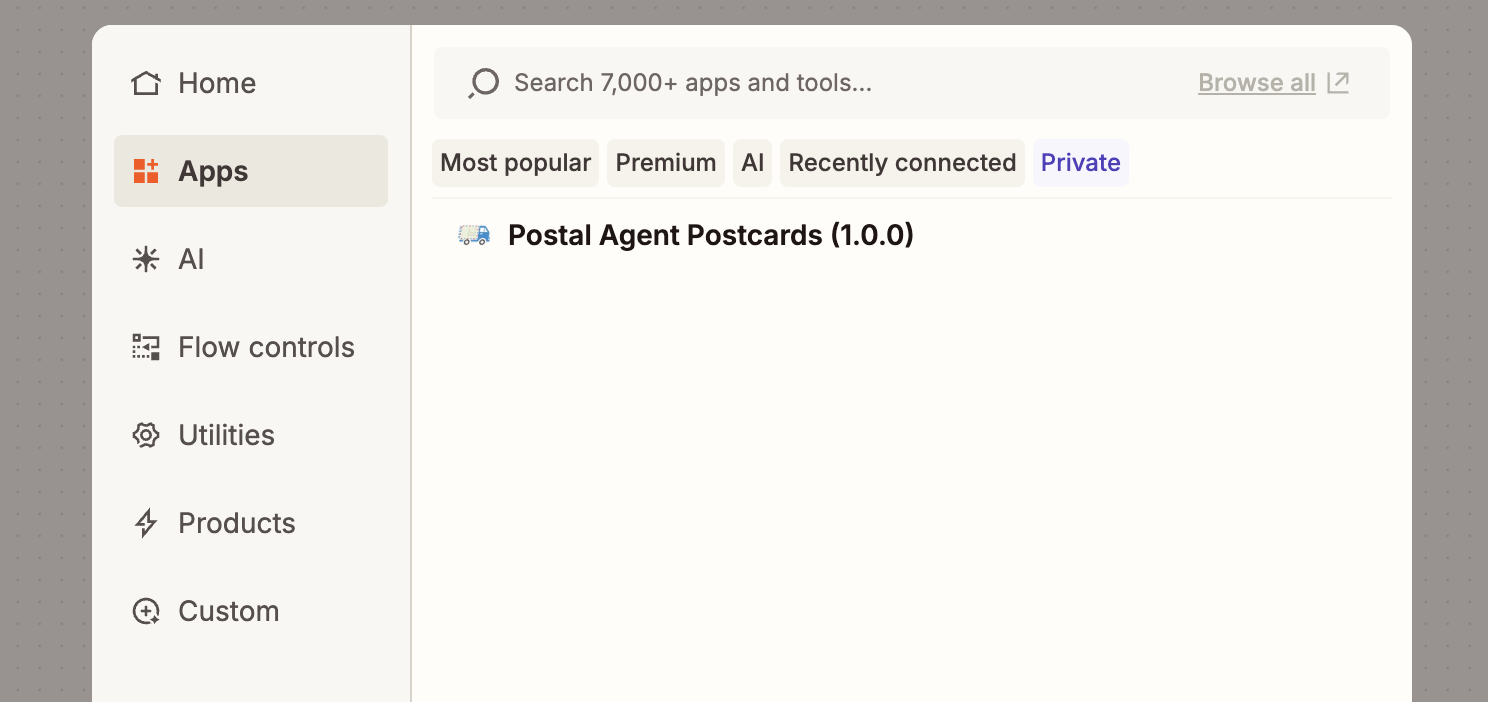
- Choose one of the three PostalAgent actions:
- Create a New Contact
- Send a Postcard to a Specified Address
- Send a Postcard to an Existing Contact
- When prompted, click Sign in to PostalAgent and complete the OAuth flow to connect your account
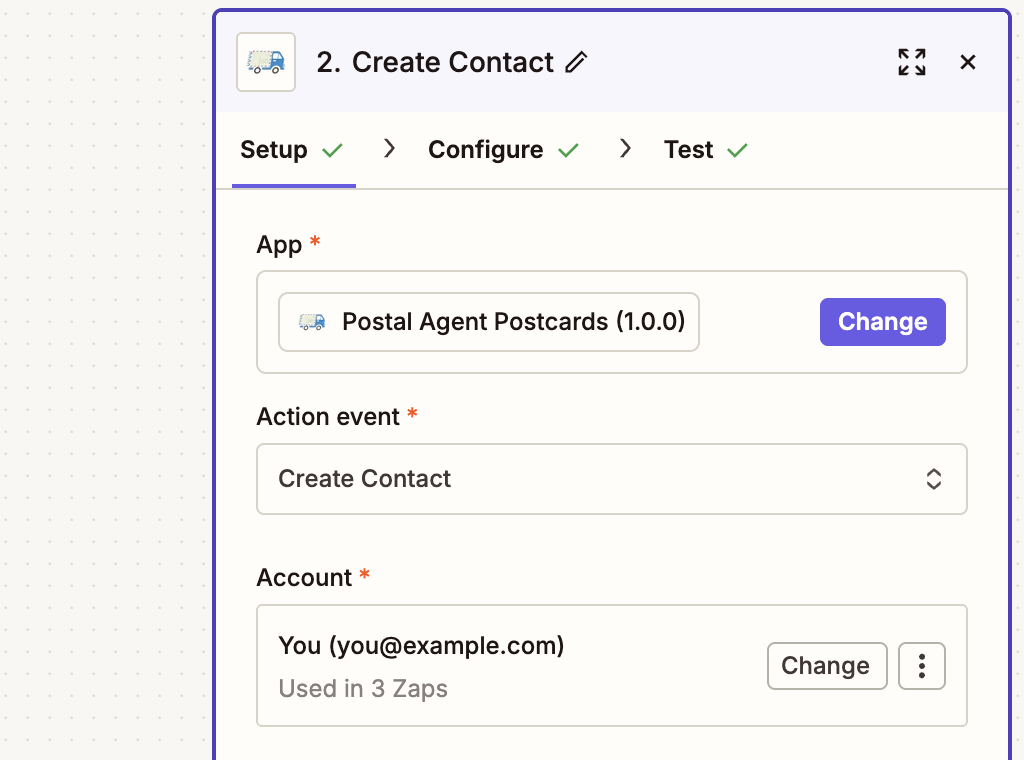
- Map the fields from your trigger to the PostalAgent action (e.g., map the lead's name and address to the contact fields)
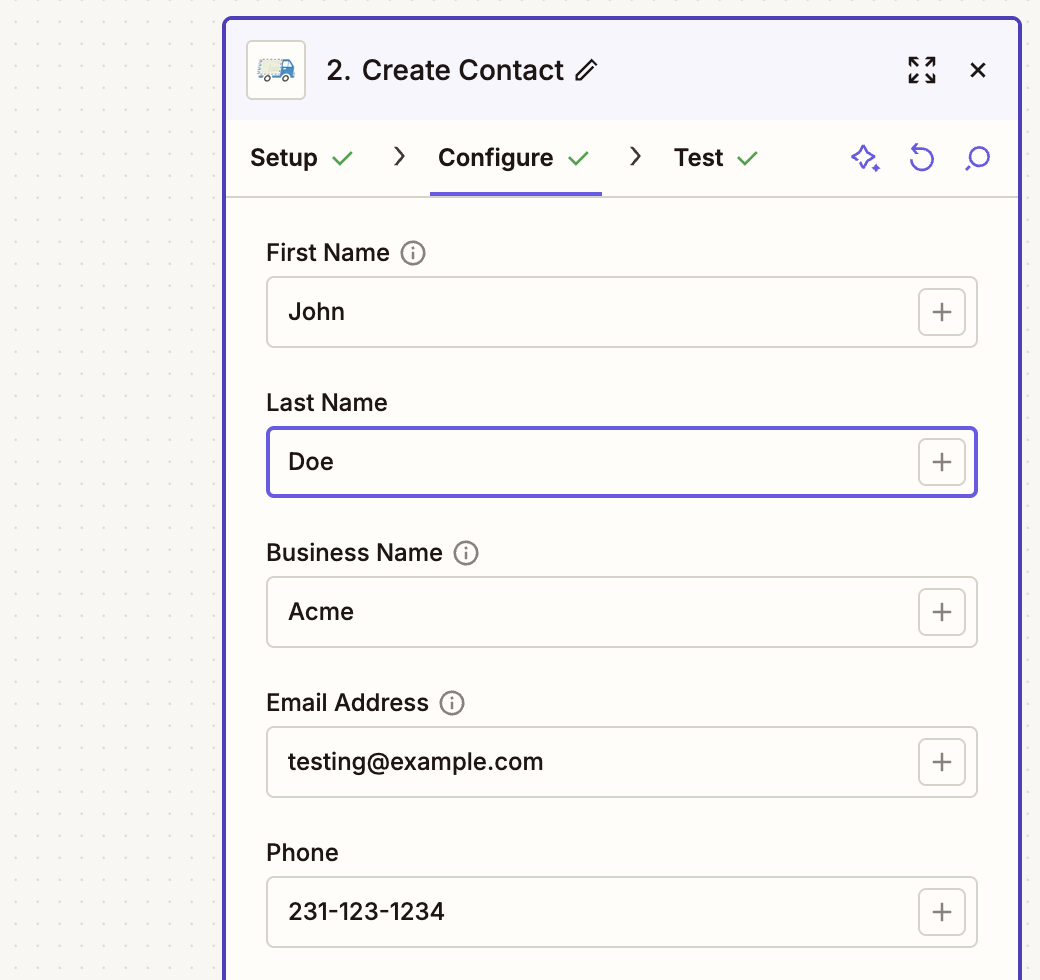
- Test your Zap and turn it on
- Send a test Zap
- You can cancel sent mail within 5 minutes so this is a perfect way to test your setup and make sure everything works.
Example Zaps
New lead → Create contact Trigger: New lead in Facebook Lead Ads Action: Create a New Contact in PostalAgent
Form submission → Send postcard Trigger: New entry in Typeform Action: Send a Postcard to a Specified Address
Deal closed → Thank-you postcard Trigger: Deal stage changed in Pipedrive Action: Send a Postcard to an Existing Contact
Spreadsheet row → Send postcard Trigger: New row in Google Sheets Action: Send a Postcard to a Specified Address
Troubleshooting
"My Zap isn't sending postcards" Check that your Zap is turned on and that all required fields are mapped correctly. Zapier will show errors in the Zap History if something failed.
"The address fields aren't mapping correctly" PostalAgent requires a complete mailing address (street, city, state, ZIP). Make sure each field from your trigger is mapped to the correct PostalAgent field.
"I need to reconnect my PostalAgent account" Go to your Zapier account settings under Connected Accounts, find PostalAgent, and click Reconnect. You'll go through the OAuth flow again.
FAQs
Is there a cost to use PostalAgent with Zapier? Connecting via Zapier is free. You pay for postcards when they're sent. Make sure you have credit added to your PostalAgent account to send Postcards
Can I use PostalAgent as a trigger? Currently, PostalAgent offers actions only (not triggers). You'll use another app as the trigger to start your Zap.
Do I need a paid Zapier plan? You can use PostalAgent on Zapier's free plan, though free plans have limits on how many Zaps you can run per month.
How fast are postcards sent? Once a Zap runs, the postcard is printed and mailed within 1-2 business days. Delivery depends on USPS, typically 7 days.
Can I choose my postcard design in the Zap? Yes — when setting up the action, you'll select which postcard template to use from your PostalAgent account.
How can I test this Integration? After you submit any Campaign, either directly or through an integration - you have up to 5 minutes to cancel it from the Tracking/Stats page for that Campaign.
Need Help?
If you have questions or run into any issues, contact us at or visit our Support page.