PostalAgent connects to Pipedrive to send real, physical postcards to your contacts — no printing, stamps, or trips to the post office. Import contacts directly from Pipedrive, choose a design, and we handle the rest. Perfect for just-solds, farming, client anniversaries, and staying top of mind with your sphere.
Overview
PostalAgent is a direct mail platform that lets real estate agents send postcards to their contacts without printing, stamps, or post office trips. With this integration, Pipedrive users can import contacts directly into PostalAgent and send them professionally printed postcards in just a few clicks.
Benefits
-Send postcards to leads, past clients, and farm areas without leaving your workflow
-No CSV exports or manual data entry — search and import contacts directly
-Stand out from the crowded inbox with physical mail that gets noticed
-Great for just-sold announcements, open house invites, geographic farming, client anniversaries, and thank-you cards
What syncs
Contact data (name, address) syncs one way from Pipedrive into PostalAgent. You search and select which contacts to import — nothing syncs automatically.
How It Works
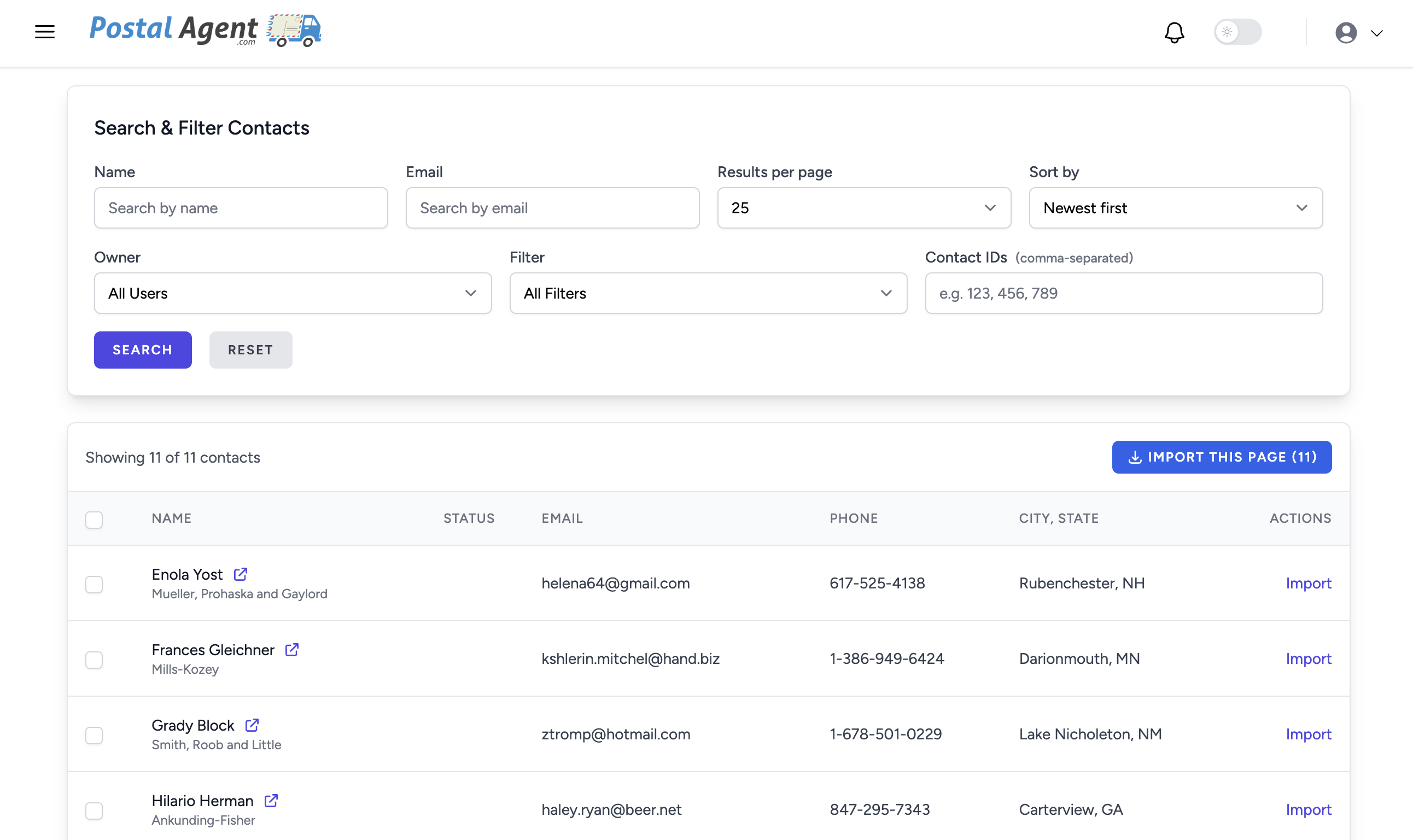
Once connected, you can browse your Pipedrive contacts directly within PostalAgent. Search or filter to find the contacts you want, select them, and import them into a PostalAgent mailing list. From there, choose a postcard design (or upload your own), and PostalAgent prints and mails the postcards within 1-2 business days.
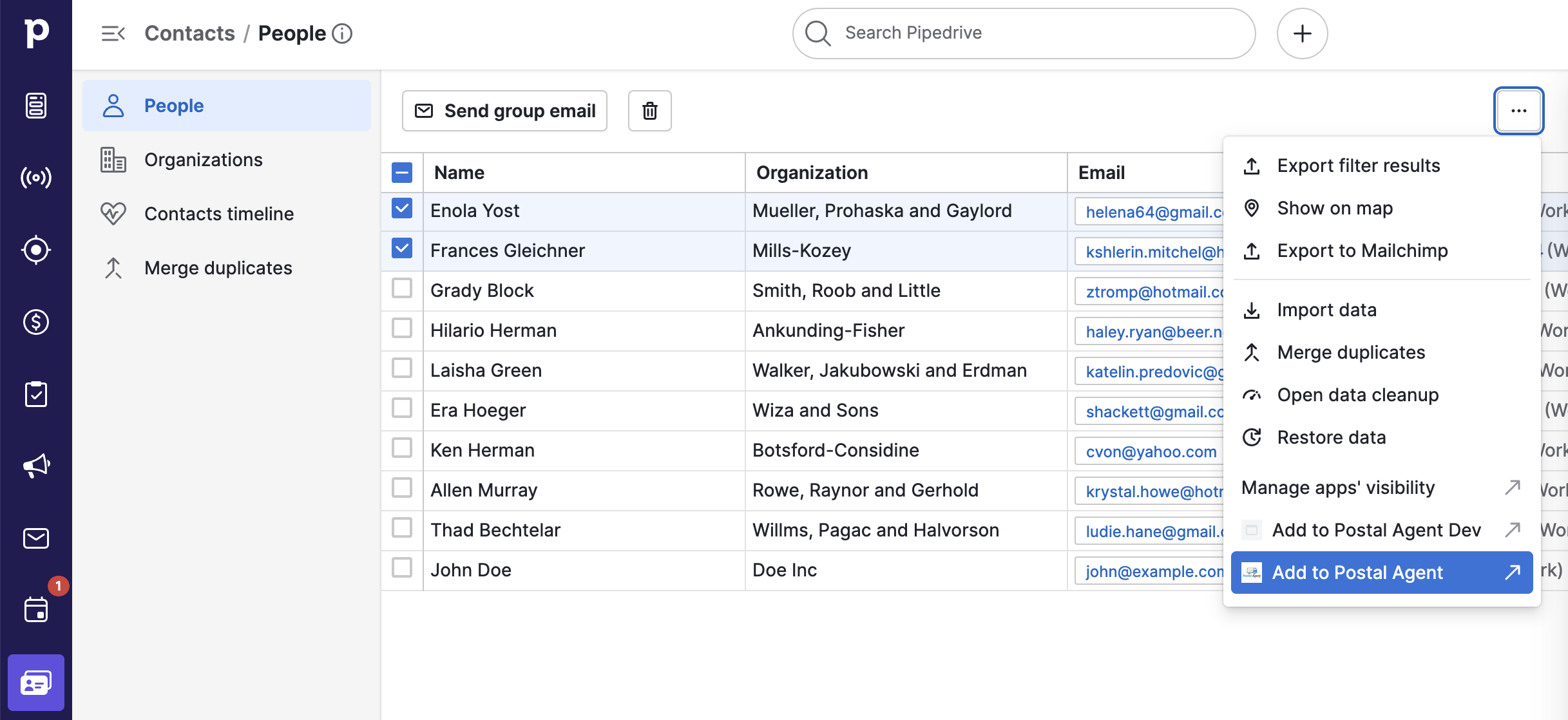
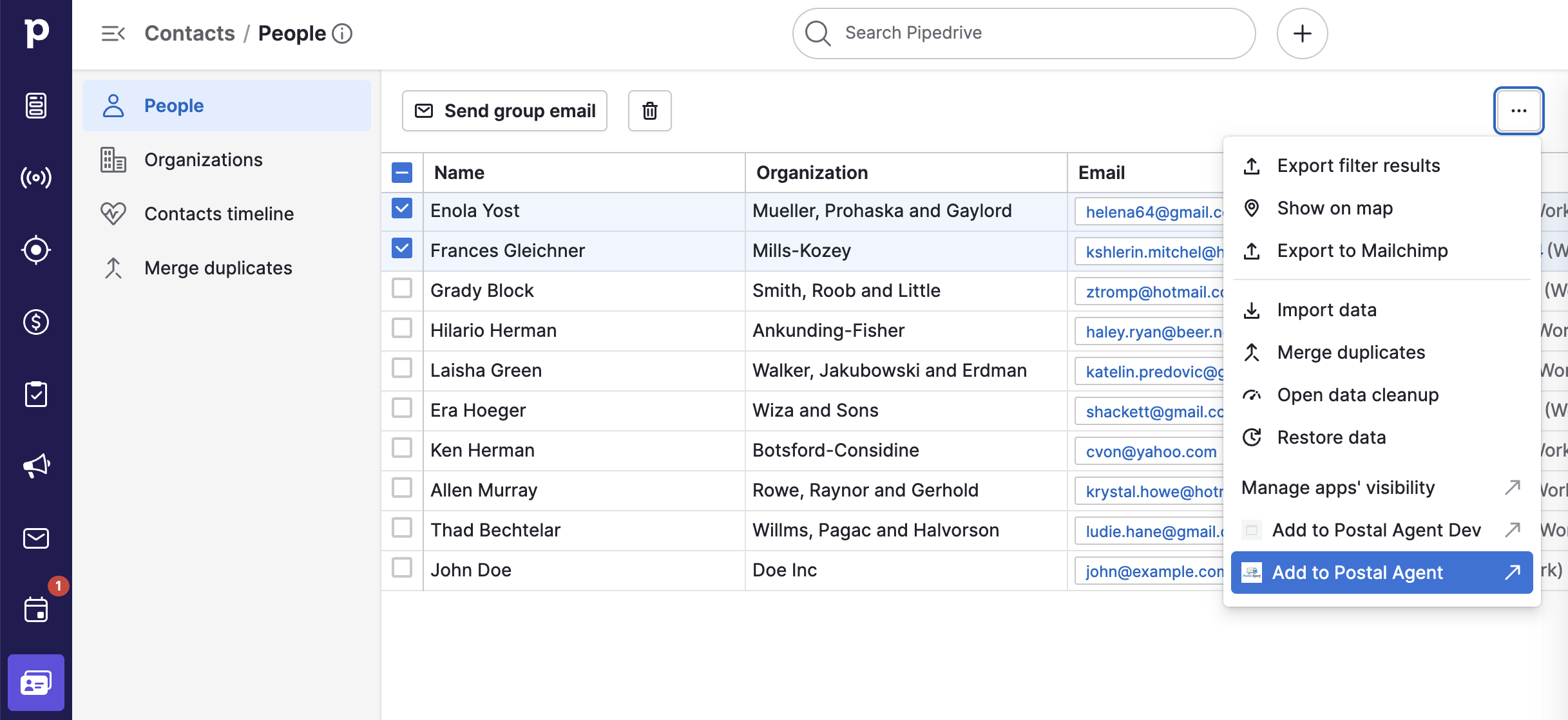
You can also import People directly from within Pipedrive. From the Contacts/People page in Pipedrive, use the checkboxes to select 1 or more People, then use the bulk action dropdown and click "Add to Postal Agent"
How to Set It Up
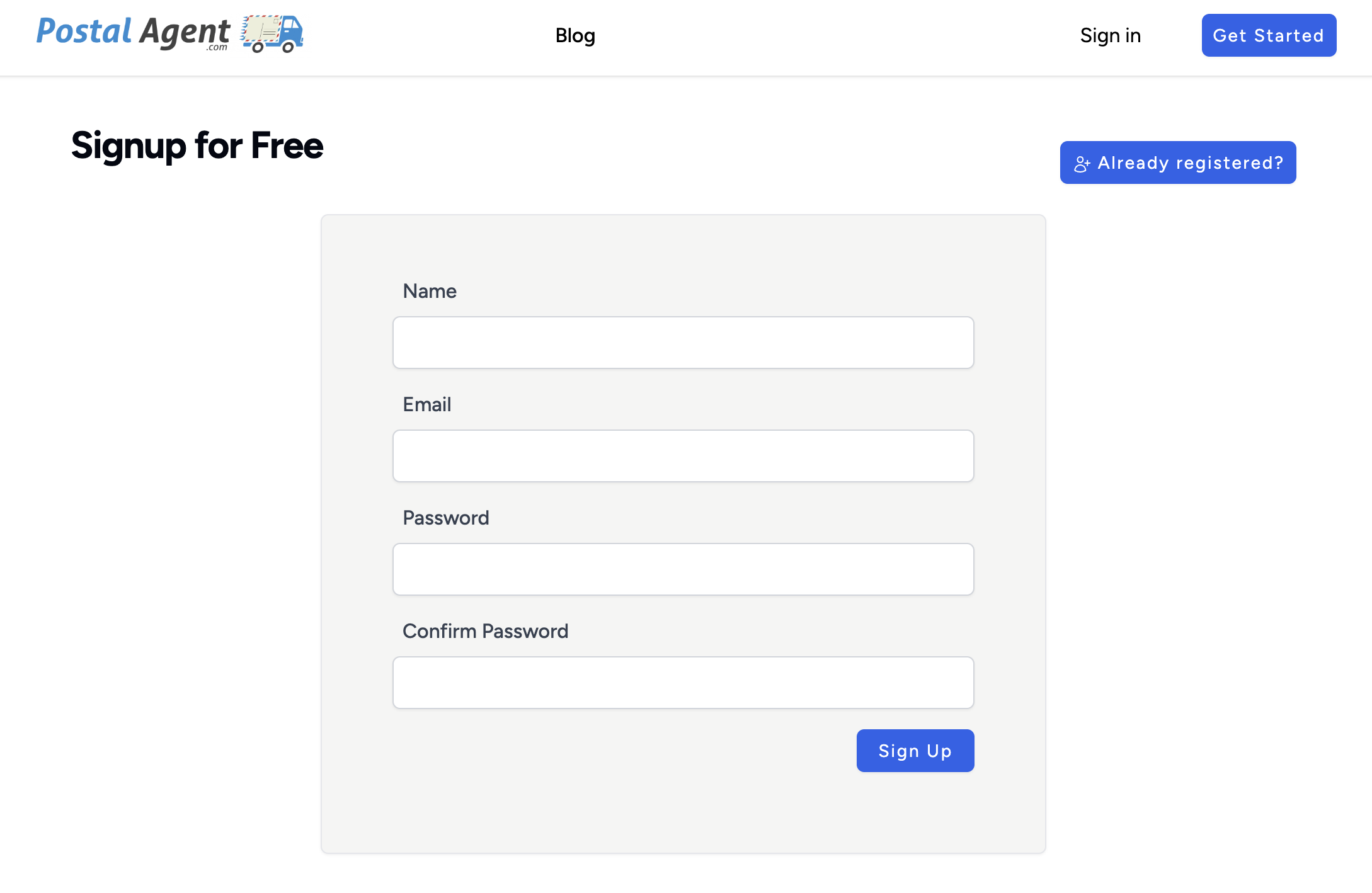
- Sign up for a free PostalAgent account
- Click Integrations in the left sidebar
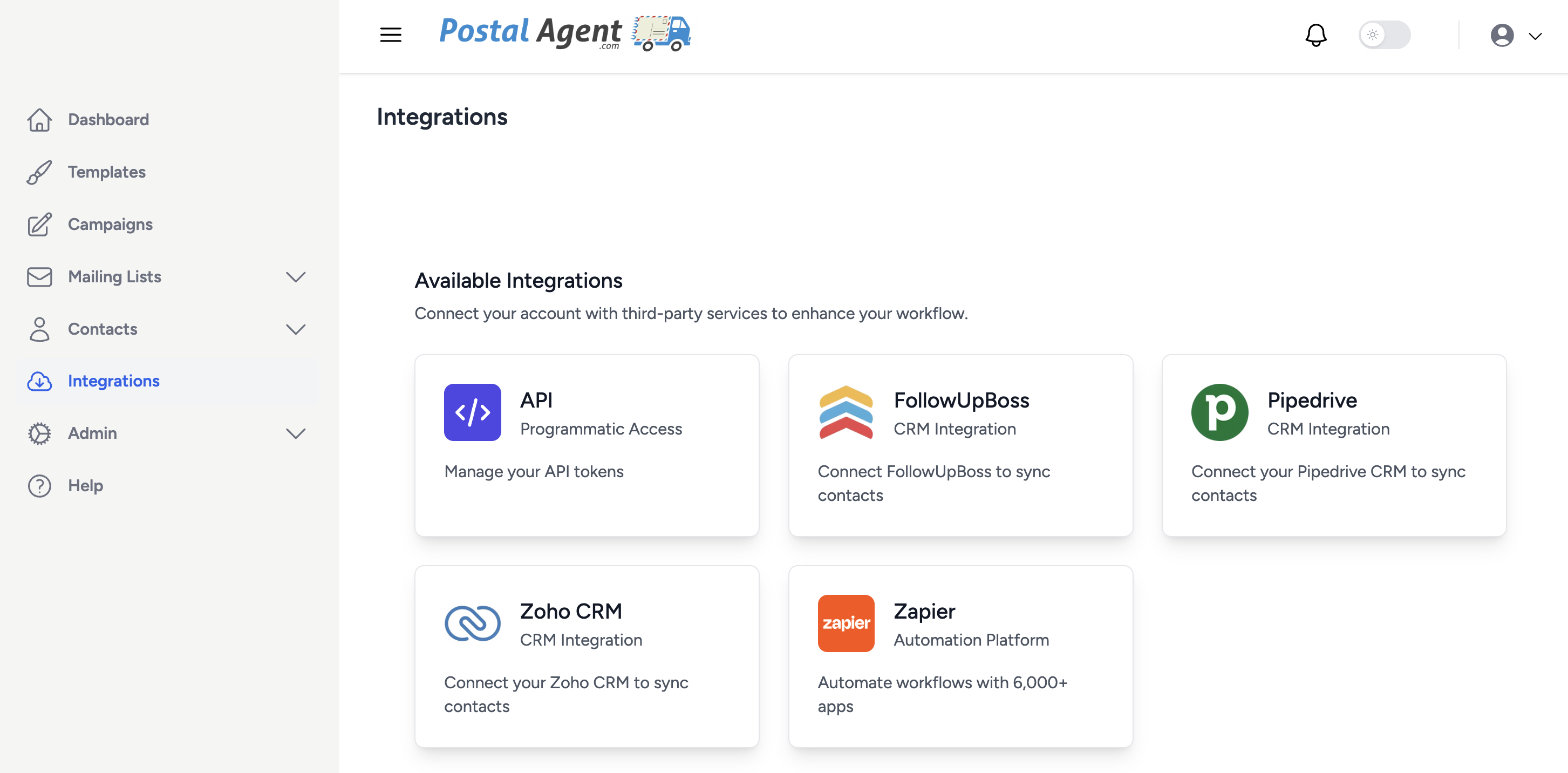
- Find Pipedrive and click Connect
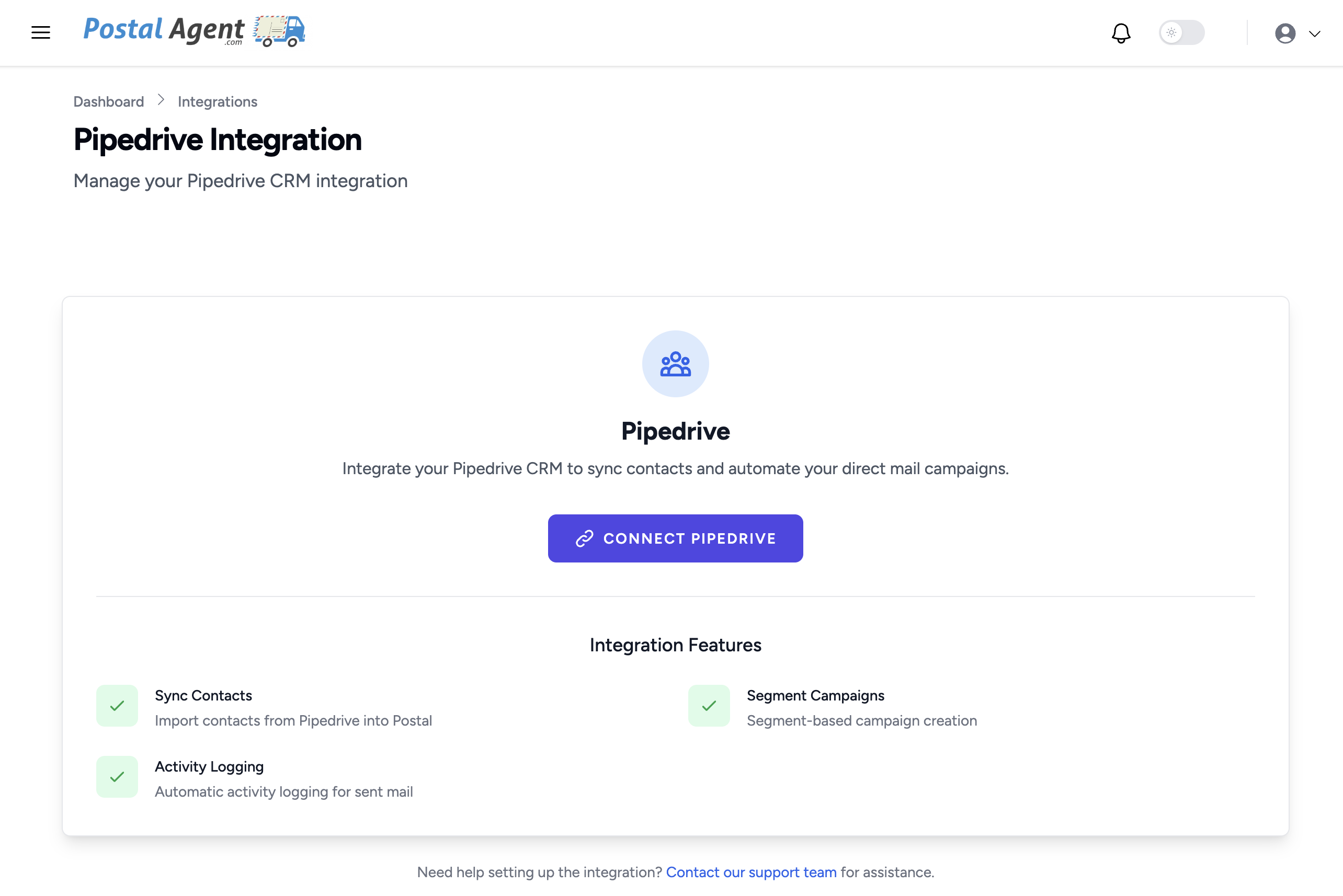
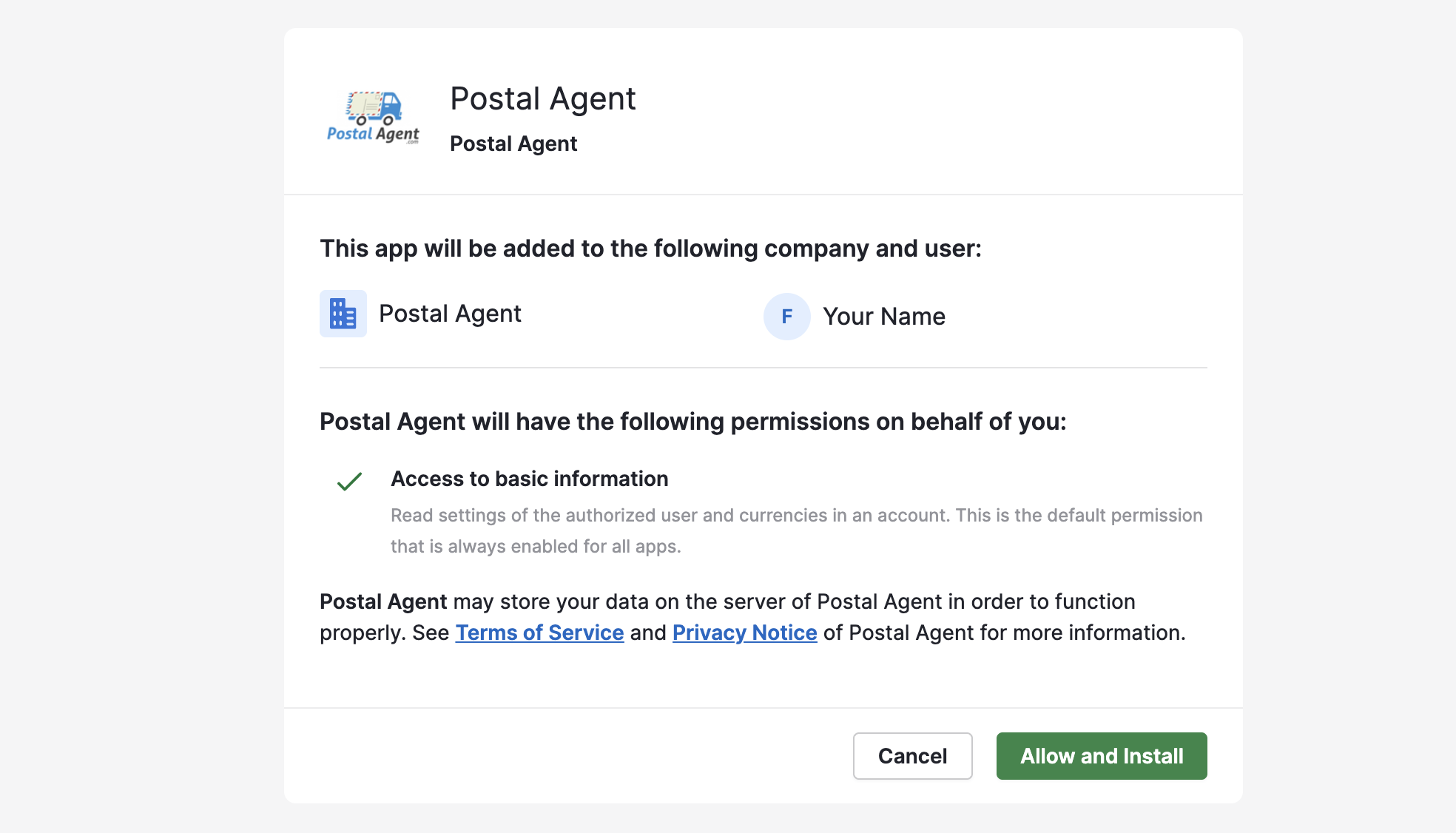
- You'll be redirected to Pipedrive to authorize the connection — click Allow & Install
- Once approved, you'll be redirected back to PostalAgent and your Pipedrive account will be connected
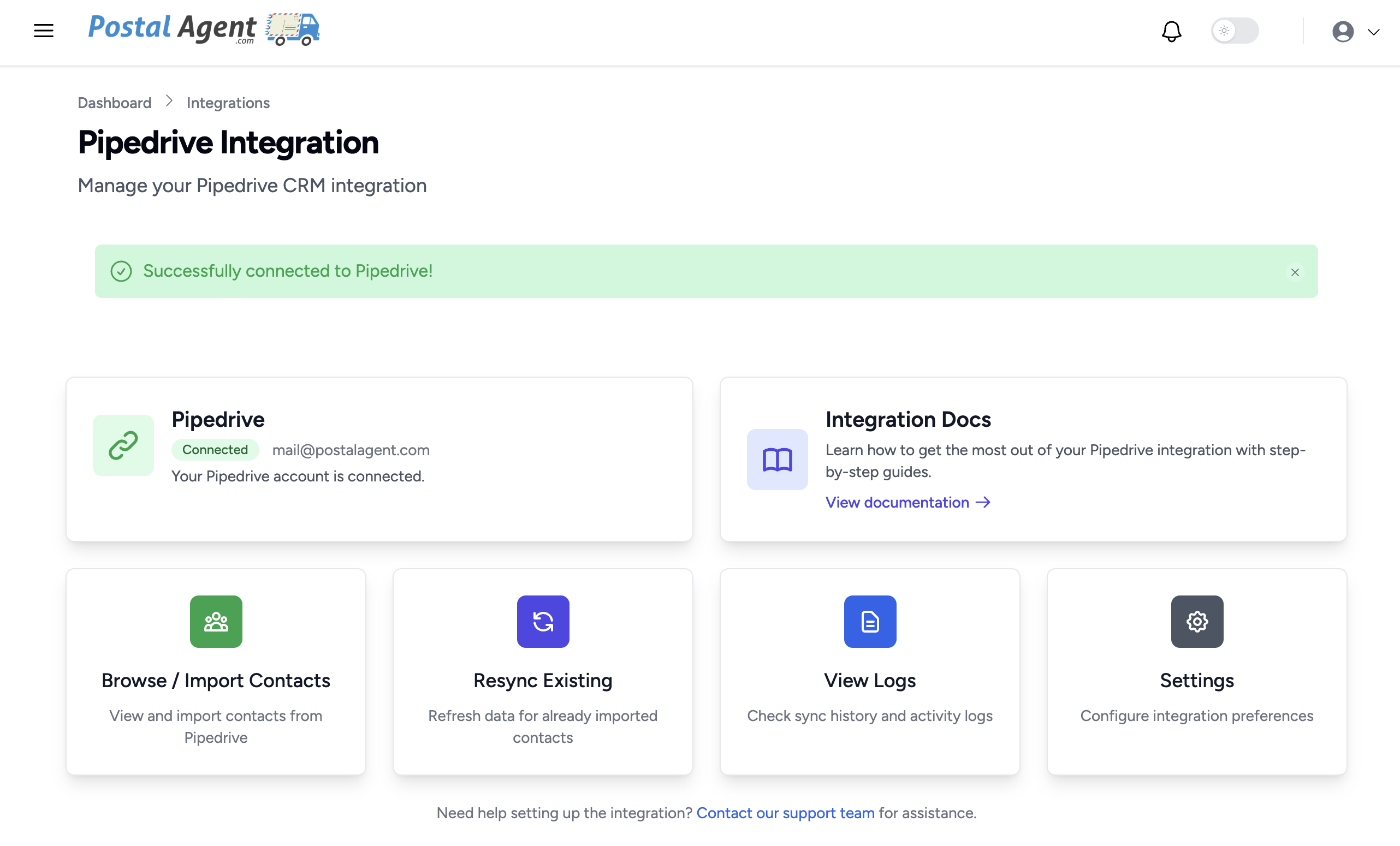
- To import contacts, go to Integrations → Pipedrive → Browse & Import Contacts
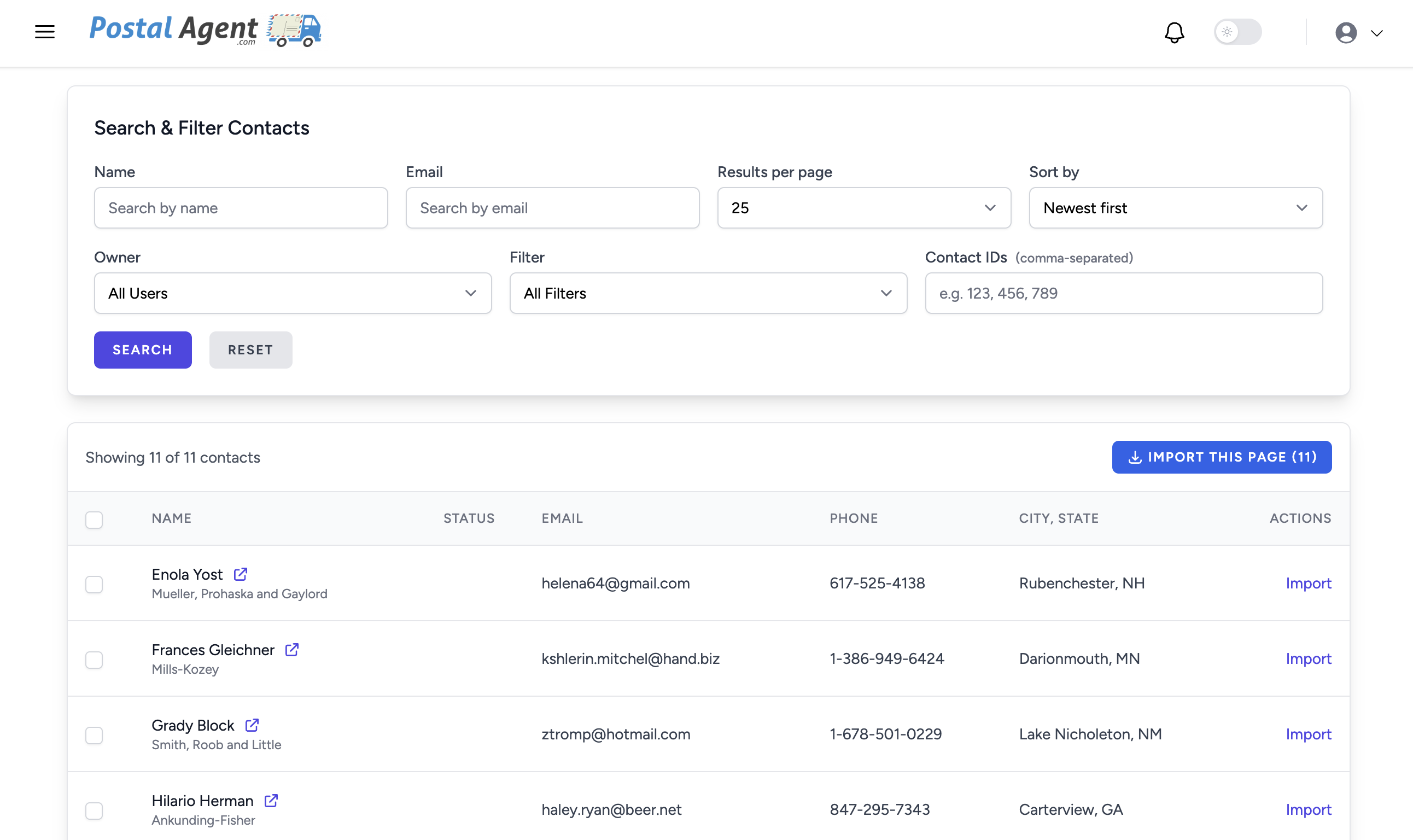
- Search or filter to find the contacts you want, select them, and click Import

- You can also import People directly from within Pipedrive
Troubleshooting
"I don't see my contacts after connecting" Make sure you've navigated to Integrations → Pipedrive → Browse & Import Contacts. Contacts are not automatically synced — you need to search and import them manually.
"A contact is missing their address" PostalAgent requires a mailing address to send postcards. If a contact doesn't have an address in Pipedrive, they won't be available for import. Add their address in Pipedrive and try again.
"I want to disconnect the integration" Go to Integrations → Pipedrive → Settings and click Disconnect. You can also revoke access from within Pipedrive in your Settings.
FAQs
Is PostalAgent free?
Signing up is free. You only pay when you send postcards. Upgrade to a monthly plan for cheaper Postcard rates
Do I need to be the Pipedrive account owner to connect?
No. Any Pipedrive user can connect their own account via OAuth.
Do contacts sync automatically?
No. You choose which contacts to import. Nothing syncs automatically or in the background.
Can I send postcards to a specific Filter in Pipedrive?
Yes, you can search by name, email, owner, filters or ID and then import the Contacts
How long does it take for postcards to arrive?
Postcards are printed and mailed within 1-2 business days. Delivery time depends on USPS, typically 7 days.
Need Help?
If you have questions or run into any issues, contact us at or visit our Support page.